Use the
Guided
Search screen to create
more complex ProQuest searches.
The big advantage with this
interface is:
The Pull-Down menus for
Operators
The Pull-Down Field-selection
menus.
The Advanced
Search can utilize all of
the search syntax or functionality available to ProQuest
databases, including Booleans, proximity, wildcards/truncation,
and nesting.
Usage
Enter words and/or a phrase in
each Entry
Field
The Default is
"and"
within each field and between fields
Select from the Pull-Down menu
and click on the field in which you want to find your search
term(s) or phrase.
Enter additional word(s) and or
phrase in additional entry fields if desired.
Combine the fields with the
Pull-Down operator menus depending on the kinds of relationships
you want to established between the word(s) and or
phrase.
Select how you want to
limit the
search:
Select
Publication
Type. Typically you
will leave this on All,
though if you know that what you are searching for is in
Periodicals
or Journals,
selecting those specifically will speed the search.
Select
Article
Type. Typically you
will leave this on All,
though if you know that what kind of article you are searching
for, this will make your search far more pecise.
Select the
Database
File
Date Range (The
database actually consists of three separate databases divided
by the range of years that they individually cover.). This can
help narrow your search if you know when an event actually
occurred.
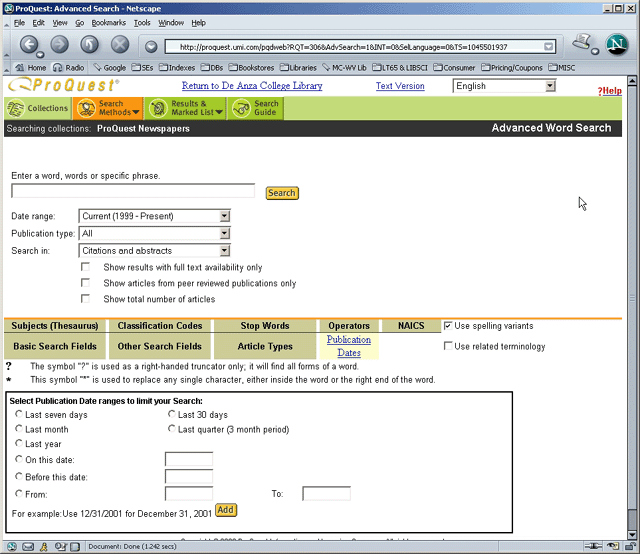
You can further refine the
search by specifying month/year date ranges within the
specificfile's overall Date Range.


 -
optimized for Netscape & 800x600
display
-
optimized for Netscape & 800x600
display